Как установить Google Chrome на Manjaro 20

Как установить Google Chrome на Manjaro 20
В этом руководстве мы покажем вам, как установить Google Chrome на Manjaro 20. Для тех из вас, кто не знал, Google Chrome — это официальный браузер Google, доступный почти для всех платформ. Функциональность Google Chrome можно легко расширить, установив различные полезные расширения и веб-приложения. Это безопасный и простой в использовании браузер.
В этой статье предполагается, что у вас есть хотя бы базовые знания Linux, вы знаете, как использовать оболочку, и, что наиболее важно, вы размещаете свой сайт на собственном VPS. Установка довольно проста и предполагает, что вы работаете с учетной записью root, в противном случае вам может потребоваться добавить ‘ sudo ‘ к командам для получения привилегий root. Я покажу вам пошаговую установку веб-браузера Google Chrome на Manjaro 20 ( Nibia ).
Установка Google Chrome на Manjaro 20 Nibia
Шаг 1. Перед тем, как запустить руководство, приведенное ниже, убедитесь, что наша система обновлена:
Шаг 2. Установка помощника AUR.
Выполните следующие команды, чтобы установить его:
Шаг 3. Установка Google Chrome на Manjaro 20.
Теперь устанавливаем Google Chrome с помощью помощника AUR:
Шаг 4. Доступ к Google Chrome на Manjaro.
После установки запустите Google Chrome с помощью действий, нажмите «Действия» и найдите Google Chrome, как только появится значок, нажмите на него, чтобы запустить программу.
Устанавливаем Google Chrome в Linux
Google Chrome является самым популярным браузером, благодаря тому, что он довольно-таки шустрый, современный и предоставляет пользователю все последние разработки от компании Google. Сам же браузер Google Chrome базируется на основе свободного браузера Chromium, который в свою очередь использует движок Blink. Не даром же некоторые другие браузеры так же используют в качестве своей основы именно Chromium, но, все они не дотягивают по своей популярности Google Chrome. Вы так же можете установить Ungoogled-Chromium, браузер, из которого вырезали все компоненты, которые отсылают ваши данные в компанию Google. И так, в этой статье мы рассмотрим способ установки Google Chrome в операционной системе Linux, начиная с дистрибутива Debian и закончим Fedora.
Установка Google Chrome в Debian и Ubuntu
И начнем мы с дистрибутива Debian 10, но, все то же самое вы можете проделать и в Ubuntu, а так же их ответвлений, таких как Linux Mint. Что бы в этом дистрибутиве установить Google Chrome, необходимо сначала скачать установочный файл, скачивать мы будем 64 битную версию. Скачивать мы будем при помощи утилиты консольной “wget”, соответственно, открываем терминал и вводим команду:

После того как вы загрузили установочный пакет, давайте его установим в нашу систему:

Теперь запускаете Google Chrome и можете приступать к серфингу интернета, а при необходимости, можно установить некоторые расширения, или сеть Tor, обо всем этом вы можете прочесть в здесь.

Устанавливаем Google Chrome в Fedora
Переходим к установке Google Chrome в дистрибутиве Fedora. Установка Google Chrome в дистрибутиве Fedora немного отличается от предыдущей установки, но, все действия так же будут приходить в терминале. Переходим в терминал и вводим команду:

Подтверждаем установку Google Chrome введя букву “д”, а затем нажимаем на “Enter”, обращаю ваше внимания, что для подтверждения необходимо ввести именно русскую букву “д”, так как без нее установка прервется. Теперь переходим в меню, ищем, там иконку запуска Google Chrome, нажимаем на нее и приступает серфить интернет:

Установка Google Chrome в Manjaro
В дистрибутиве Manjaro установка Google Chrome осуществляется из пользовательского репозитория AUR. Соответственно, он у вас должен быть подключен, для этого запускаем “Pamac”, переходим во вкладку “Настройки”:

В открывшемся окне переходим во вкладку AUR и перемещаем ползунок напротив надписи “Включить поддержку AUR”:

Теперь в поисковой строке набираем название браузера “Google Chrome” и нажимаем на кнопку “Собрать”:

Затем нажимаем на кнопку в низу “Pacman” “Применить”, появиться диалоговое окно, в котором будет указана информация о собираемом пакете, нажимаем на кнопку “Применить” и дожидаемся когда завершится сборка Google Chrome:

Заключение
Лично я, давно перестал пользоваться Google Chrome, и предпочитаю другой браузер, но, тем не менее Google Chrome до сих пор остается одним из самых популярных браузеров. И не каждый готов отказаться от него, это и понятно, Google Chrome удобный, современный и весьма шустрый браузер, в его создание немало усилий вливается со стороны компании Google. Существуют и другие браузеры практически не уступающие Google Chrome, они все так или иначе используют все тот же движок Chromium, пример тому Opera или Edge от компании Microsoft, но, Google Chrome до сих пор впереди и не собирается сдавать свои позиции. Конечно, имеются и другие движки для браузеров, например Gecko, на основе которого построен браузер FireFox, или WaterFox.
А на этом сегодня все. Надеюсь данная статья будет вам полезна.
Журнал Cyber-X
How to Install Google Chrome in Arch-based Linux Distributions
Last updated August 15, 2020 By Dimitrios 39 Comments
Brief: A step-by-step beginner’s tutorial showing how to install Google chrome in Arch, Manjaro and other Arch-based Linux distributions.
Google Chrome is undeniably the most popular web browser. It is not open source software and this is why you won’t see it preinstalled in Linux distributions you use. You won’t even find Chrome in the software center.
Installing Google Chrome is easy in Ubuntu and Fedora based distribution. You can go to Chrome’s website and download the DEB or RPM installer files and install it easily.
Arch Linux users may notice that there is no package for them on the official Google Chrome website.
Fortunately, Google Chrome is available on Arch User Repository (AUR) for Arch, Manjaro and other Arch-based Linux distributions. You can install Google Chrome using an AUR Helper easily or use Git to install it without AUR helper.
I will cover both options in this tutorial.
Method 1: Installing Google Chrome with an AUR Helper
I hope that you are familiar with the concept of AUR (Arch User Repository) and AUR helpers. If not, please read our articles on what is AUR and what are AUR helpers and how to install them.
Step 1: Install an AUR helper (if you haven’t got one already)
There are quite a few AUR Helpers to choose but in this tutorial, I will use yay which I have installed on my machine. You should install it if you haven’t got it already:
Step 2: Install Google Chrome using AUR helper
Now, to install Google Chrome in Arch Linux using yay:
As you see, yay found all the available packages related to Google Chrome. I will choose the stable package to install, the same as I chose for the other installation method.
Step 3: Upgrading Chrome version with yay
You successfully installed Chrome on your Arch-based distribution. However, you should also know what to do if there is a new version of Google Chrome available.
You cannot upgrade AUR packages with pacman command unfortunately. But the good thing is that Yay and pacman share common flags for performing similar actions.
The following command will upgrade all the packages – both AUR and official.
Method 2: Install Google Chrome without an AUR Helper
You’ll still be getting the package from Arch User Repository. However, instead of AUR helper, you’ll be doing it manually.
Step 1: Install base-devel package
To install a package from AUR you must have Git and base-devel group installed. Base-devel group contains all the essential tools for compiling from source.
Step 2: Install Chrome from AUR
Clone Google Chrome from the AUR and install it like this:
Step 3: Upgrading Google Chrome afterward
When a new version of Google Chrome is released and it is available in the AUR, you can upgrade it manually like this:
Conclusion
As you can see, it is slightly complicated to install Google Chrome in the Arch domain. But that’s the beauty of it. Many people use Arch because it gets you doing more things in the terminal.
If you encountered any difficulty when you try to install Google Chrome, let us know at the comment section or share your thoughts.
Make sure to subscribe on our social media to get first the latest Linux news!
Like what you read? Please share it with others.
Install Google Chrome in Archlinux and Manjaro Linux

Firefox is using 100% CPU in my Desktop. i though maybe its time to switch to another browser like Chrome or Opera Browser and see the differences. in my case Manjaro Linux firefox browser is standard installed with the os but im not really happy with performance.
Lets me show you how to Install Google Chrome in Archlinux and Manjaro Linux
Method1
Please find add/remove software under your administration tools

Under options > Preferences

Under Aur repository, please Enable AUR support and check to get updates from there

Please apply and back to find google-chrome under packages 
Select the Package to buid 
Building the package 
Now check if Chrome has been installed and run it


Method2
to install Google-chrome you need to install Git Client
you can install git with this command

Go to Google Chrome AUR repository at https://aur.archlinux.org/packages/google-chrome/ and you should see the following page

Please clone the git url with this command

Go to google-chrome directory


Please Enjoy your Installed Google Chrome Browser in Archlinux or Manjaro
How to Install Google Chrome in Arch Linux and Manjaro
2 min
In this quick beginner’s guide, we explain the steps require to install Google Chrome in Arch Linux and Manjaro.
Google Chrome is a popular Web Browser from Google used by millions of users around the world. It is based on the open-source browser project Chromium. Although there are many Chromium-based browsers out there, like Edge, Vivaldi, still Google Chrome is one of the top used due to its connection with the Google ecosystem and services.
Installing Google Chrome in Ubuntu and its derivatives are easy, even in Fedora as well. But installing in Arch Linux or similar distributions like Manjaro requires some additional steps.
This guide covers below items.
Install Google Chrome in Arch Linux
There are two ways to install Google Chrome in Arch Linux. The first method we explain here is installing via AUR Helper like Yay. This is the recommended step.
The second method is a direct compilation method.
Method 1: Install via Yay AUR Helper (recommended)
In this method, you need the Yay (AUR helper) to be installed in your system. If it is installed already, you can skip the installation steps. To install Yay, follow the below steps Or, refer to this guide. If you are using Manjaro, the yay is probably already installed, hence you can go directly to the yay command.
Open a terminal and start executing the following commands for setting up Yay.
Now, to install Google Chrome, run the below command.
Method 2: Install via compilation
In the second method, you need to get the latest Google Chrome from Git repo and compile it using makepkg. Here are the steps.
Open a terminal and run the followign commands in the sequence mentioned below.
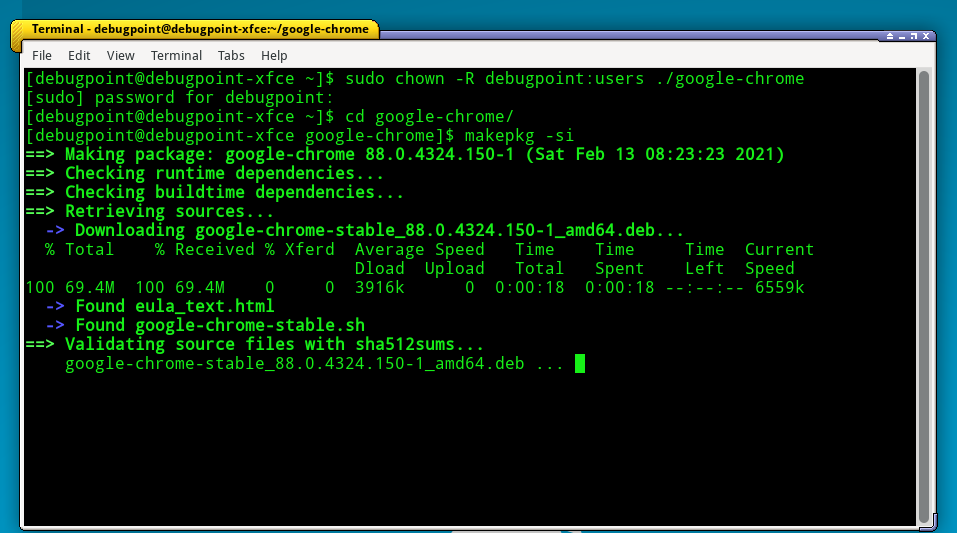 Install Google Chrome in Arch Linux – Compilation
This will compile and install Google Chrome in Arch Linux.
After the installation, you can launch Google Chrome from the application menu of your Arch Linux respective desktop environment.
These two are the most simple way to install in Arch Linux and Manjaro. If you face any problem, you can let me know in the comment box below.
We bring the latest tech, software news and stuff that matters. Stay in touch via Telegram, Twitter, YouTube, and Facebook and never miss an update!